
Getting started#
Installation#
If you are testing a pre-release version of stellarphot we recommend setting up a virtual environment and installing stellarphot in this environment.
Only use one of the methods below for making a virtual environment.
Creating an environment with conda or mamba (use whichever one you have installed):
mamba create -n stellarphot-test python=3.11
mamba activate stellarphot-test
pip install --pre stellarphot
Creating an environment with virtualenv:
python -m venv stellarphot-test
source stellarphot-test/bin/activate
pip install --pre stellarphot
To install stellarphot without creating an environment, use:
pip install --pre stellarphot
You can remove stellarphot with:
pip uninstall stellarphot
Overview#
You will go through this process to do photometry:
You need to make some equipment-related settings, like camera properties, observatory information, and passband maps. You may only need to do this step once if you use the same equipment for all of your observations.
Settings specific to an object need to be made:
Some settings, like the photometry aperture size, may need to be changed for each night.
Others, like a list of the sources for which you want to perform photometry in a particular field, can be reused.
Review all of the settings that the photometry routines will use.
Once those settings have been done, you can perform photometry on your images.
Graphical interface for making settings and doing photometry#
A graphical interface is provided via JupyterLab to make settings. To start JupyterLab, run the following command in a terminal:
jupyter lab
If you open up JupyterLab, the launcher should have a section that looks like this:
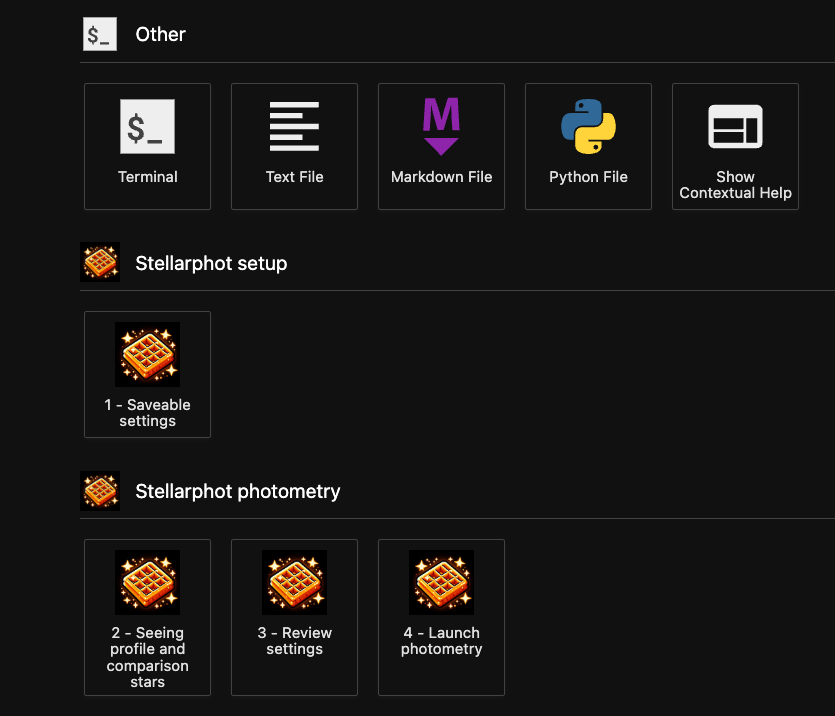
Each of the notebooks corresponds to the steps in the previous section. Open each notebook in order, and run all of the cells in the notebook. In each will be a graphical interface to enter the camera and other settings (in notebook 1), measuring the seeing and choose comparison stars (in notebook 2), review all of your settings (in notebook 3), and perform photometry (in notebook 4).
When the photometry is done there will be a new notebook called photometry_run.ipynb that will have a record
of the photometry that was done.
Editing a settings file directly#
The settings file is a JSON file that can be edited in any text editor. A sample setting file is below, along with the JSON schema, which is a formal description of the settings file.
- orphan:
Settings examples#
Performing photometry from within a Python script#
Once you have made your settings doing photometry is a two line process. First, you create a photometry object:
from stellarphot.photometry import AperturePhotometry
from stellarphot.settings import PhotometryWorkingDirSettings
photometry_settings = PhotometryWorkingDirSettings().load()
phot = AperturePhotometry(settings=photometry_settings)
Then you can perform photometry on a single image:
phot(image)
If you have a directory of images you can perform photometry on all of them at once like this:
phot(directory, object_of_interest="M13")